In this Article
Bundle vs assembly
What’s the difference between a bundle and an assembly? Read on to find out!
A bundle deducts the inventory when it's added to the order.
For example: We sell a bottle of 'Green Bean Shampoo' and 'Green Bean Conditioner' for $15 each. For the holiday season we want to create a 'Green Bean combo' bundle selling shampoo and conditioner for $22. When the combo deal is added to an order it is deducted from the 'Green Bean Shampoo' and 'Green Bean Conditioner' products’ inventory.
An assembly deducts the inventory when it’s first created as an assembly.
For example: We have three different ‘Green Bean’ hair products that we want to use to create three ‘Green Bean’ gift boxes. We’ll take three bottles of 'Green Bean Shampoo'. 'Green Bean Conditioner' and 'Green Bean Heat Protection Spray' off the shelf and package them into three gift box packages. Then, we create the ‘Green Bean’ gift box as an assembly in the point-of-sale software and include the three bottles of hair product in the assembly. We set the inventory of the gift boxes to three (because we want to create just three gift boxes for now) which automatically deducts three bottles of shampoo, three bottles of conditioner and three bottles of heat spray from my inventory.
| Note: Inventory tracking must be turned on for your products for the software to deduct amounts from the product inventory. See the Inventory section of Create and Edit Products on talech.com to learn how to turn inventory tracking on. |
Simple vs complex bundles and assemblies
There are many ways to configure a bundle or assembly which range from simple to more complex. Here’s a few examples to help you visualize what you need for your business.
|
Simple
|
Complex
|
|
Business: Hair salon
Name: Green Bean Combo
Items: Shampoo + conditioner
Price: $22
What makes it simple? Multiple products combined for a flat price. No size variations.
|
Business: Restaurant
Name: Soup Special
Items: Drink + soup + chips
Variations: S/M/L drink sizes, S/M/L soup sizes
What makes it complex? The drink and soup options both have size variations with different price points. The size of the combo the customer selects (S/M/L) determines the final price.
|
Create a bundle or assembly on the software
Simple bundle or assembly
Now, let’s see how we’d create a simple bundle or assembly using the point-of-sale software.
- Login as an admin and navigate to Back Office > Menu.
- Tap the + button and select Create a Product (iOS) or New Product (Android).
- Choose Bundle or Assembly from the Product Type drop-down menu.
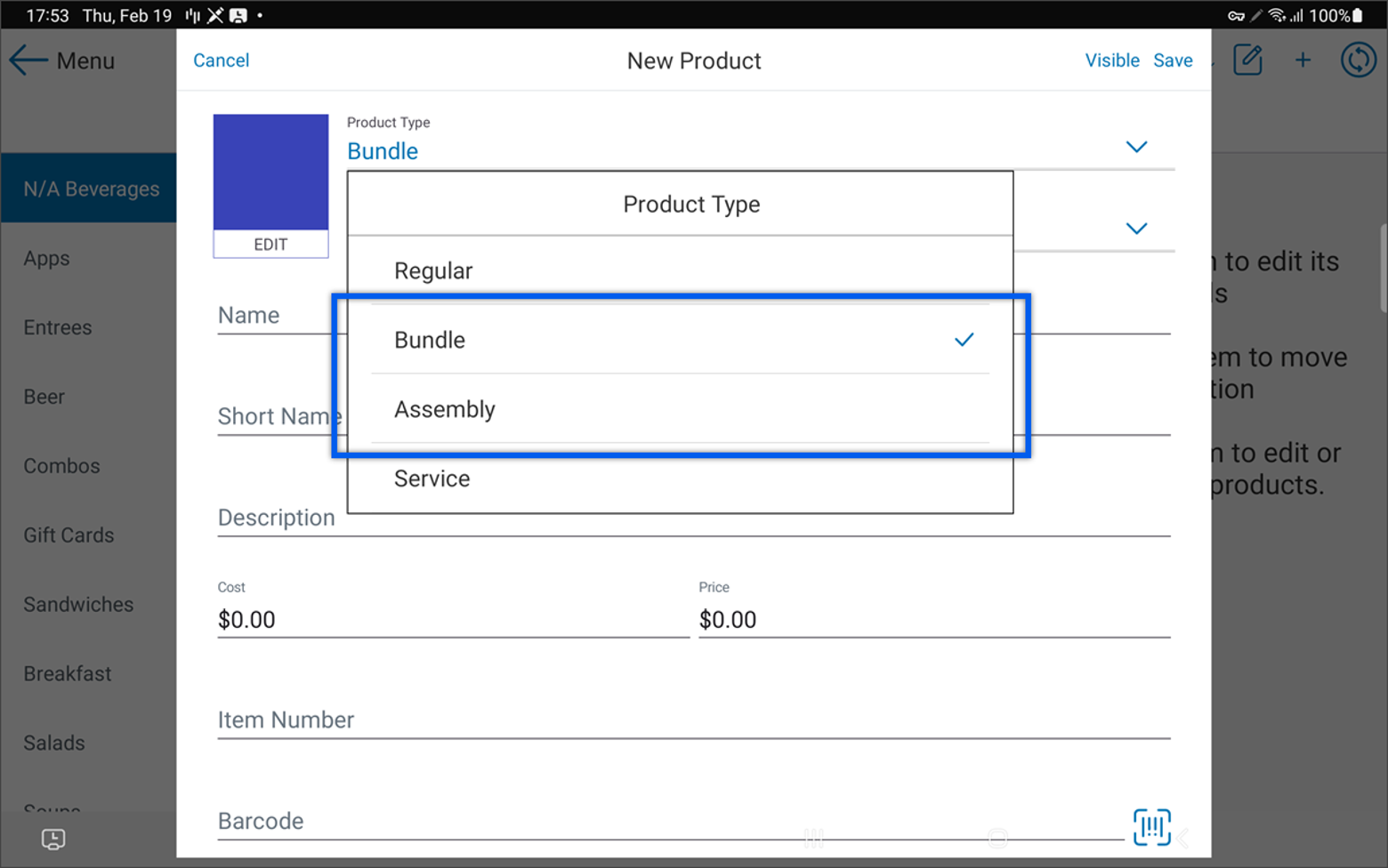
- Complete the fields the same way you would when creating a regular product (Name, Category, Description, etc.).
- Select Bundles toward the bottom of the page.
- Use the search bar to find the products you want to add to the bundle.
- Tap on a product to add it. The product and quantity are displayed below the search area.
- Tap the x to clear the search field and search for another product.
- Once all products have been added, select Save to create the bundle.
Complex bundle or assembly
Now, let’s see how we’d create a complex bundle or assembly using the point-of-sale software.
- Follow steps 1-4 under Simple bundle or assembly.
- Use the Variations along with the Bundle options at the bottom of the page to set up your bundle/assembly.
- Let’s use the example of setting up an ‘App Special’ that includes a specific S/M/L appetizer and a S/M/L drink with different price points for the different sizes.
- Variations: I add my ‘app size’ and ‘drink size’ variations which each have a small, medium and large size variation. Then I select Edit Price and Quantity to set the different prices for each drink and appetizer combo. I select Save when done to save my changes.
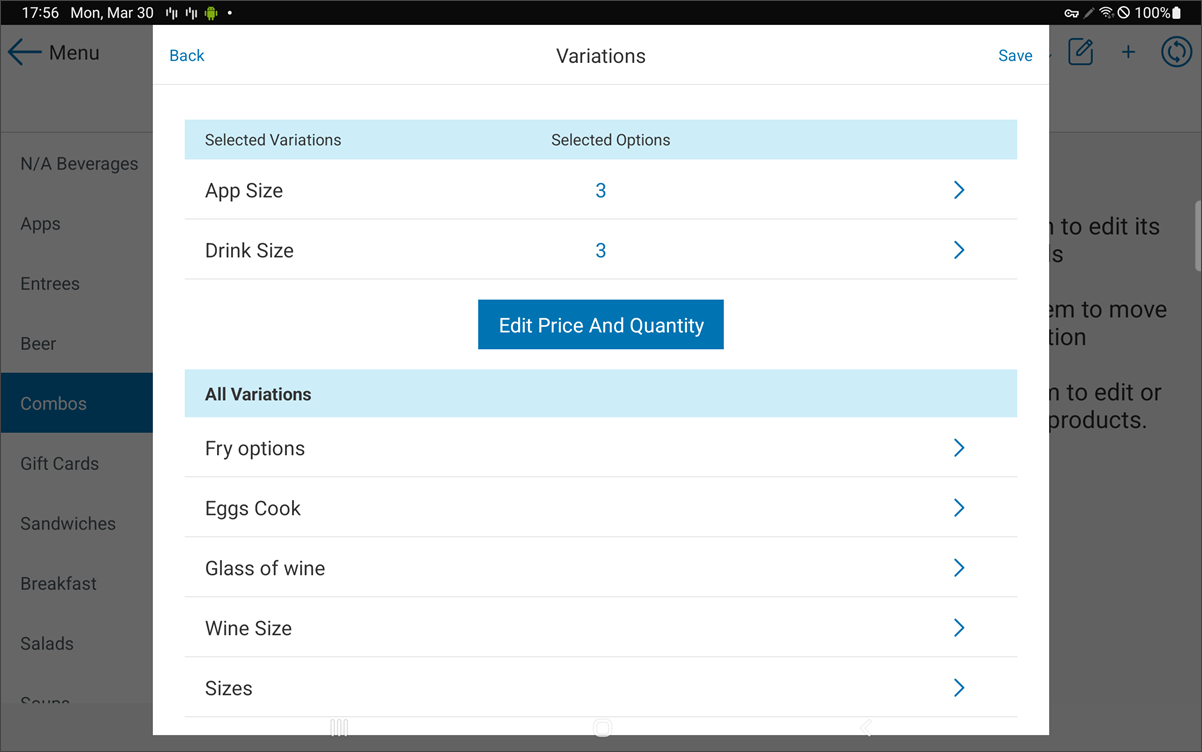
- Bundle: I use the Bundle option to add the products to each of my ‘App Special’ variations (small, medium and large). I select one of the variations to edit the products included.
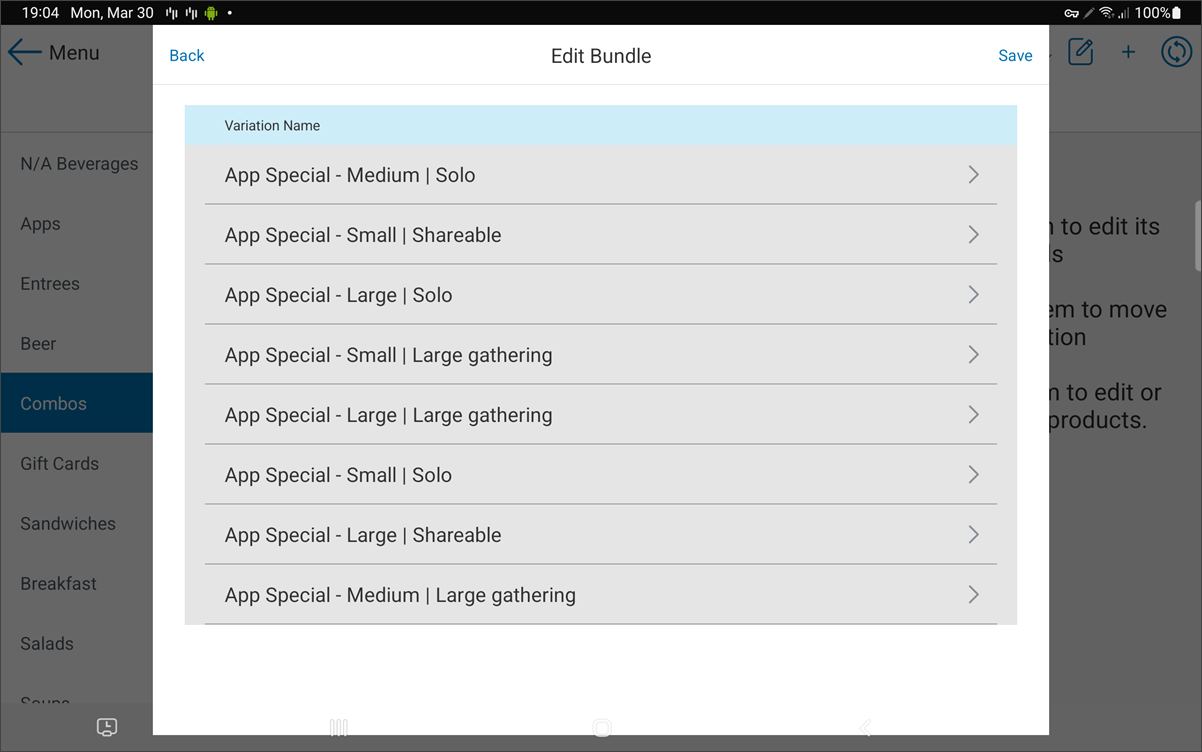
- Then I search for the individual appetizers and drinks I want to add to the special.
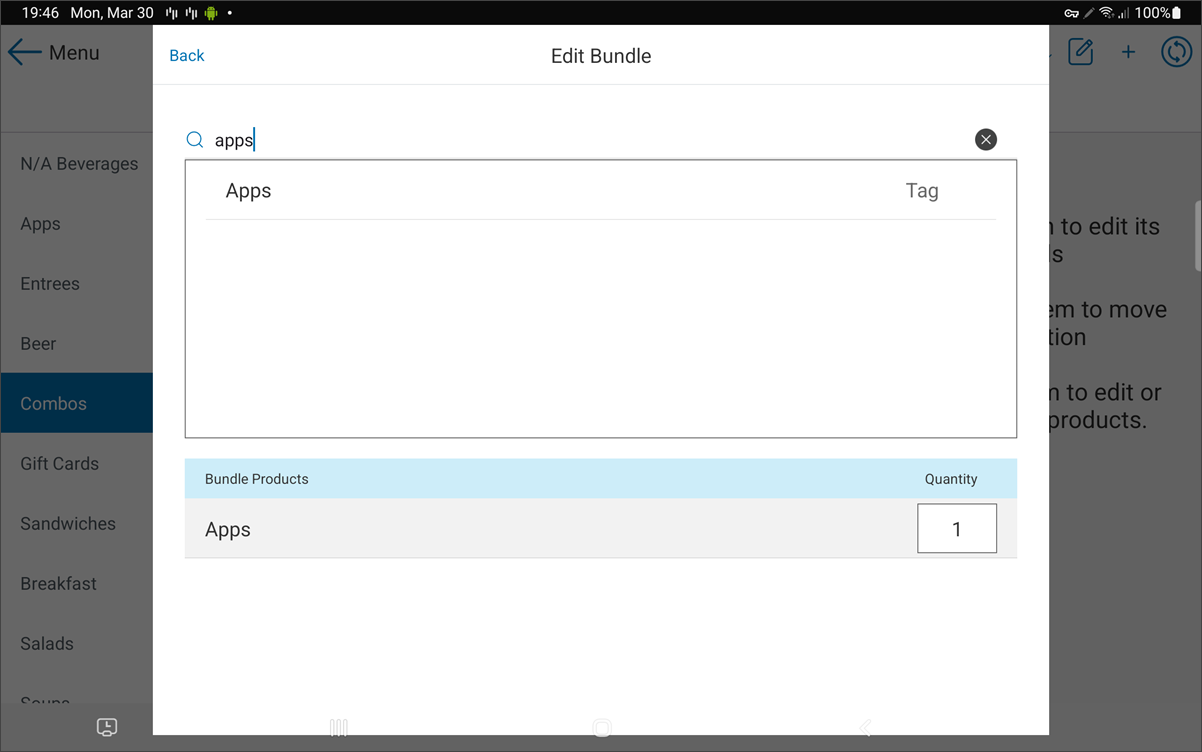
Adding ‘Apps’ tag as the product within a single bundle variation
- Once done, select Save.
My ‘App Combo’ is now set up for use in my point-of-sale software. Any number of other complex bundles and assemblies can be set up using a different combination of tags, products and variations.
Create a bundle or assembly on talech.com
- Log in to talech.com. Navigate to Items > Products.
- Select +New Product button > New Bundle/Assembly.
| Note: Remember, a bundle deducts the products from your inventory when it’s added to an order. |
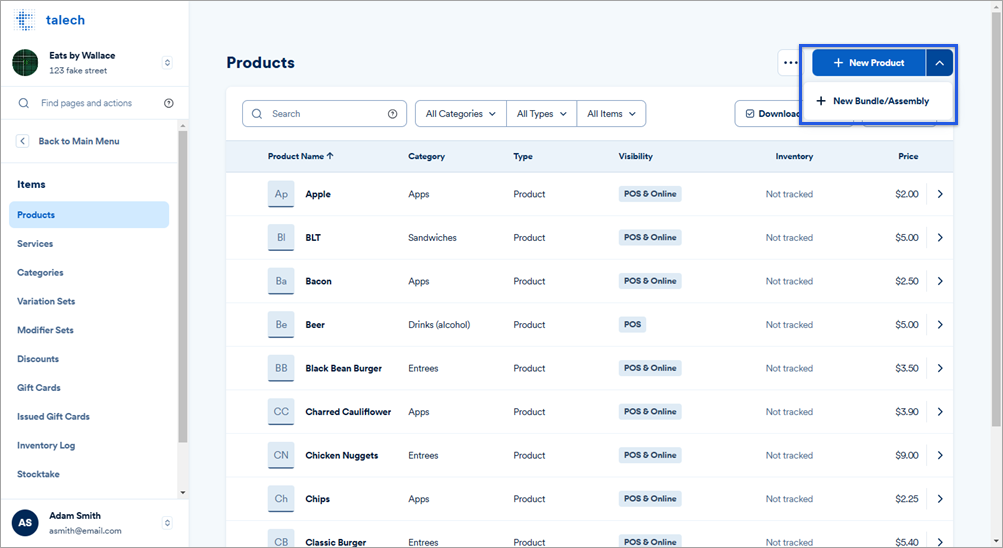
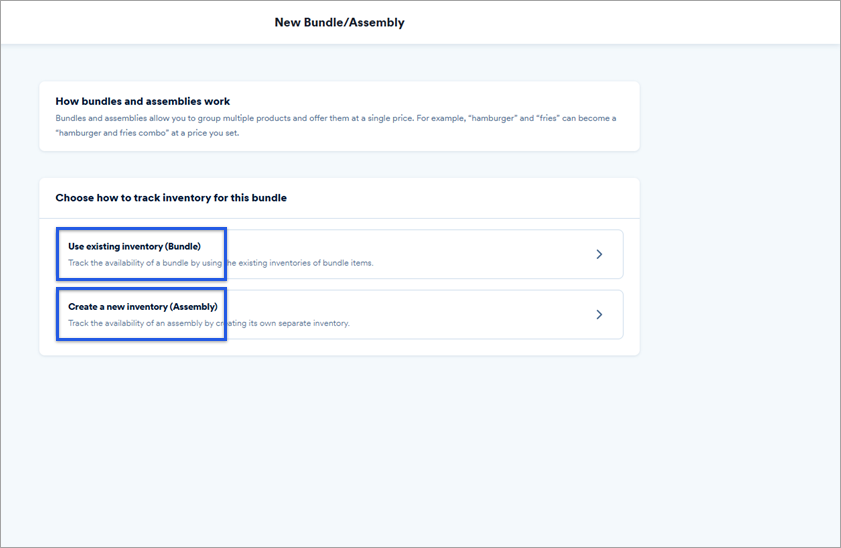
- Select Bundle or Assembly depending on which you want to create.
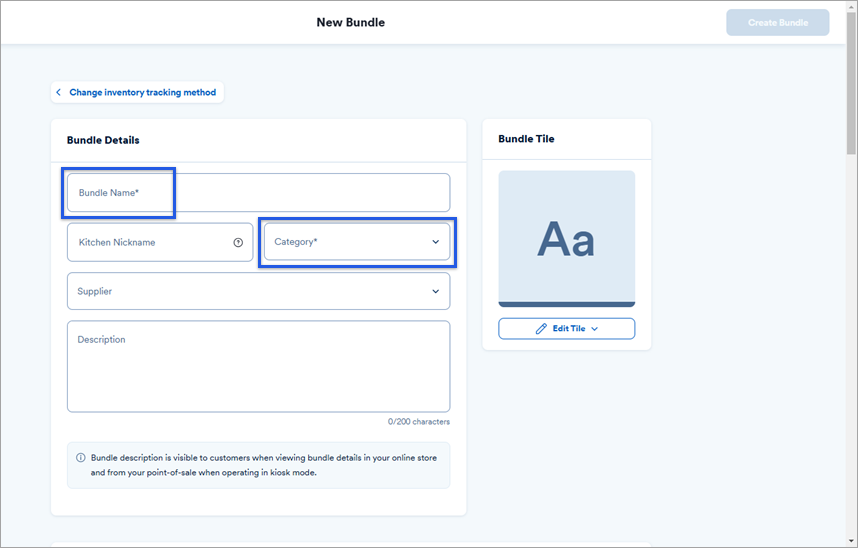
- Provide a Bundle Name or Assembly Name and assign it to a Category.
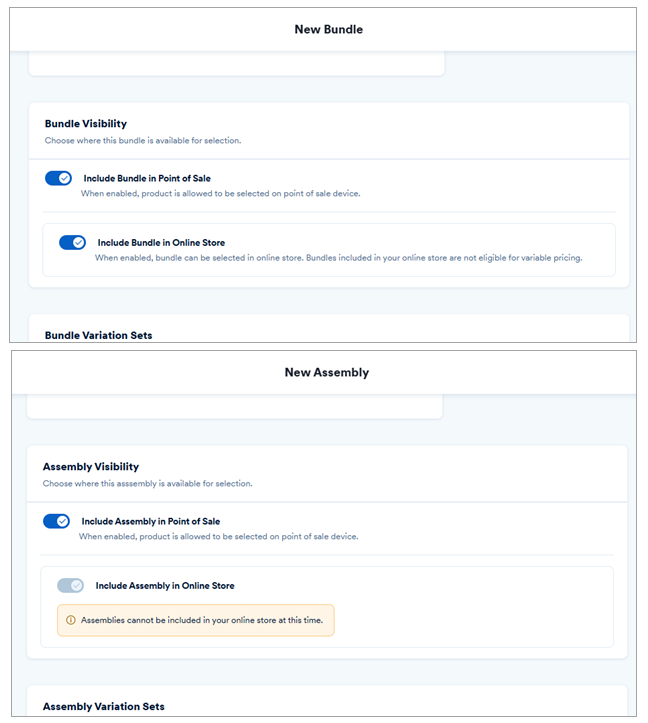
- In the Bundle Visibility or Assembly Visibility section, indicate whether the bundle/assembly should be included on your point-of-sale and in your online store (bundle only – assemblies cannot be included in online store currently).
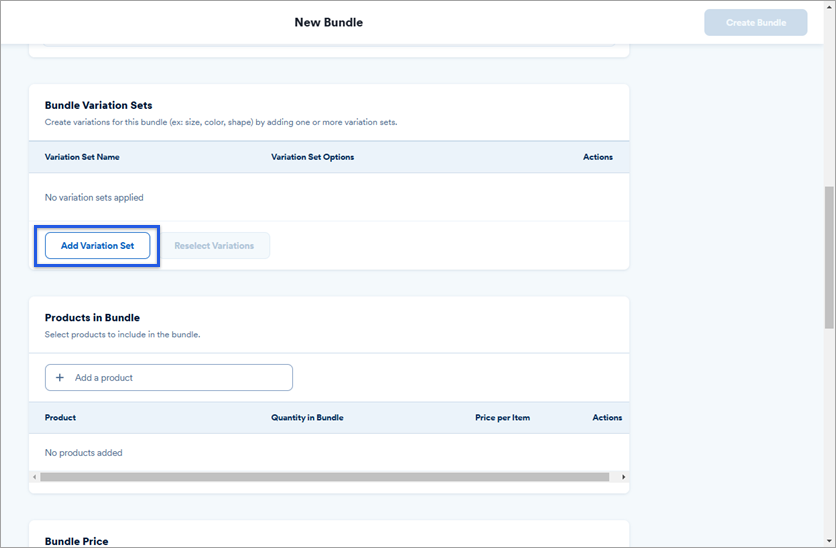
- Click Add Variation Set to add any variations that you’d like to use with the bundle or assembly in the Bundle Variation Sets section.
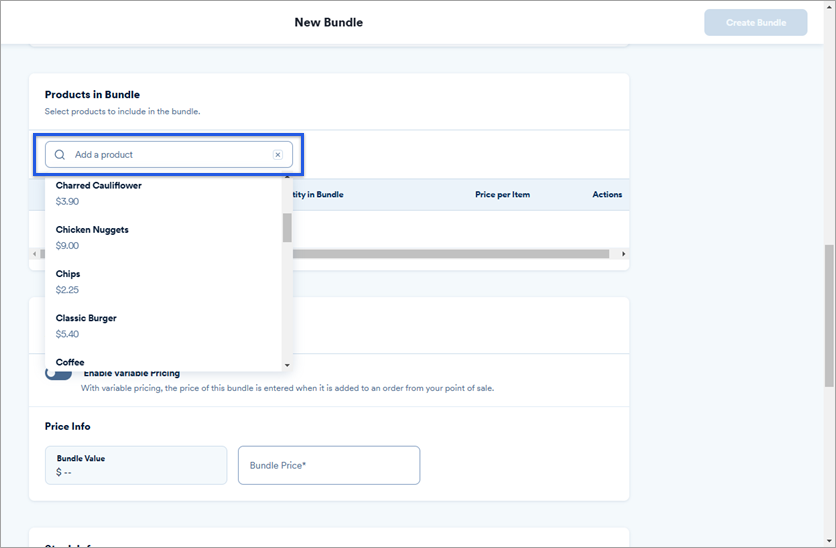
- In the Products in Bundle or Products in Assembly section and add any products you want to include in the bundle/assembly.
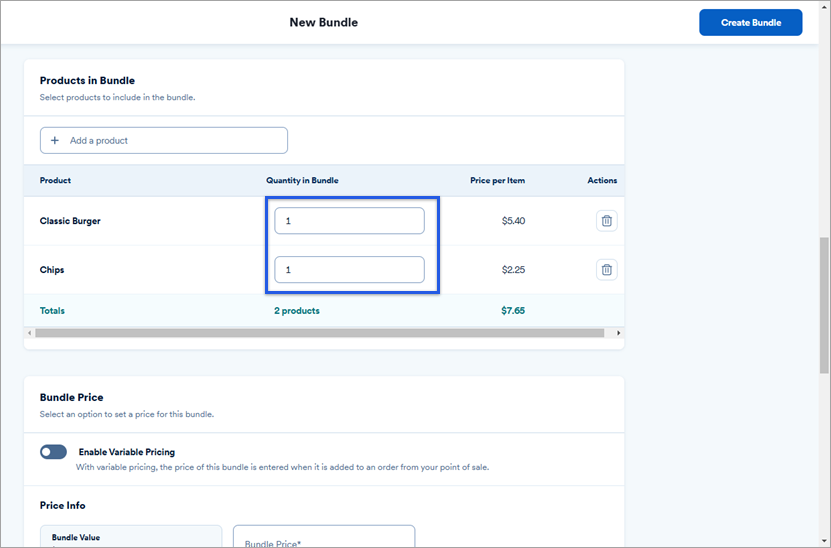
- Set the quantity for each product that you want to include in the bundle/assembly. The total price automatically updates based on the price per item and number of items added.
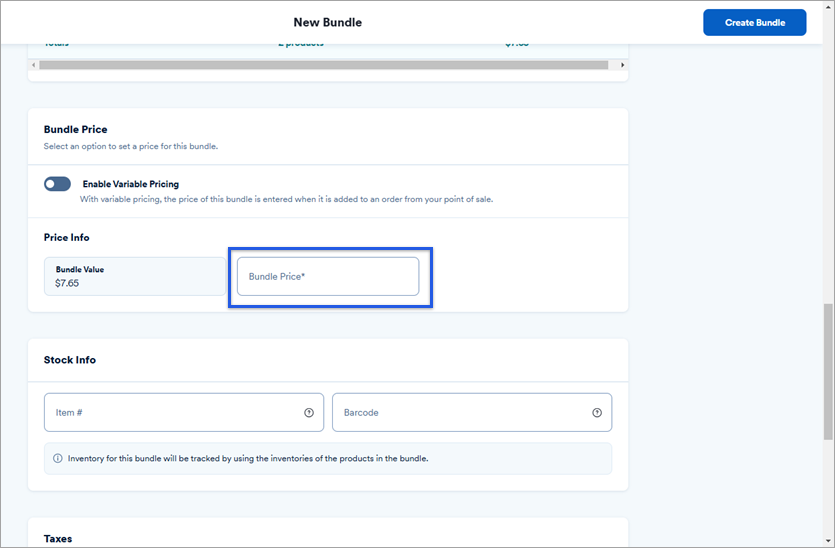
- In the Bundle Price or Assembly Price section, select an option to price the bundle/assembly.
- Set a price for the bundle/assembly in the Bundle Price or Assembly Price field. The value of the bundle/assembly is shown to the left.
- You can also toggle on Enable Variable Pricing if you want to enter the price of the bundle/assembly at checkout.
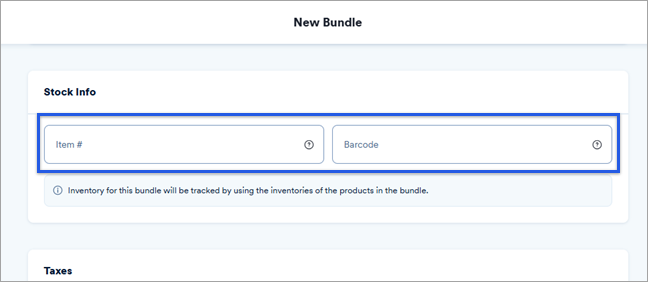
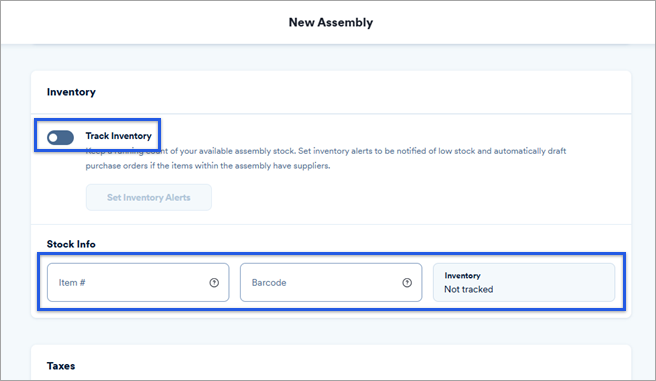
- For the stock info sections, the options are different depending on whether you’re creating a bundle or assembly.
- For bundles: Enter an Item # or Barcode if you want to be able to quickly locate this bundle via an item number or be able to scan it via a barcode. Inventory is tracked using the products that are added to the bundle at time of sale.
- For assemblies: You can toggle Track Inventory on to keep track of how many assemblies you have in stock and receive inventory alerts when low so you can create more assembly products. You can also enter an Item # or Barcode if you want to be able to quickly locate this bundle via an item number or be able to scan it via a barcode.
- In the Taxes section, apply any taxes to the bundle/assembly.
- In the Tags section, apply any tags to the bundle/assembly.
- Select the Create Bundle button to create the new bundle or assembly.
FAQ
What about creating bundles with variations?
Add the product and its variations to the bundle, and it is incorporated into the bundle.
Why would I need to use a bundle?
Bundles are usually used for deals or combos of products - they simply allow you to create a new button on your register that groups multiple products together.