Create a poured product with unit inventory tracking
For this article, we will use a bottle of wine as an example.
- Login to talech.com.
- Select Items > Products from the left navigation menu.
- Select New Product in the top right.
- Fill in the Product Name, Category, and Supplier.
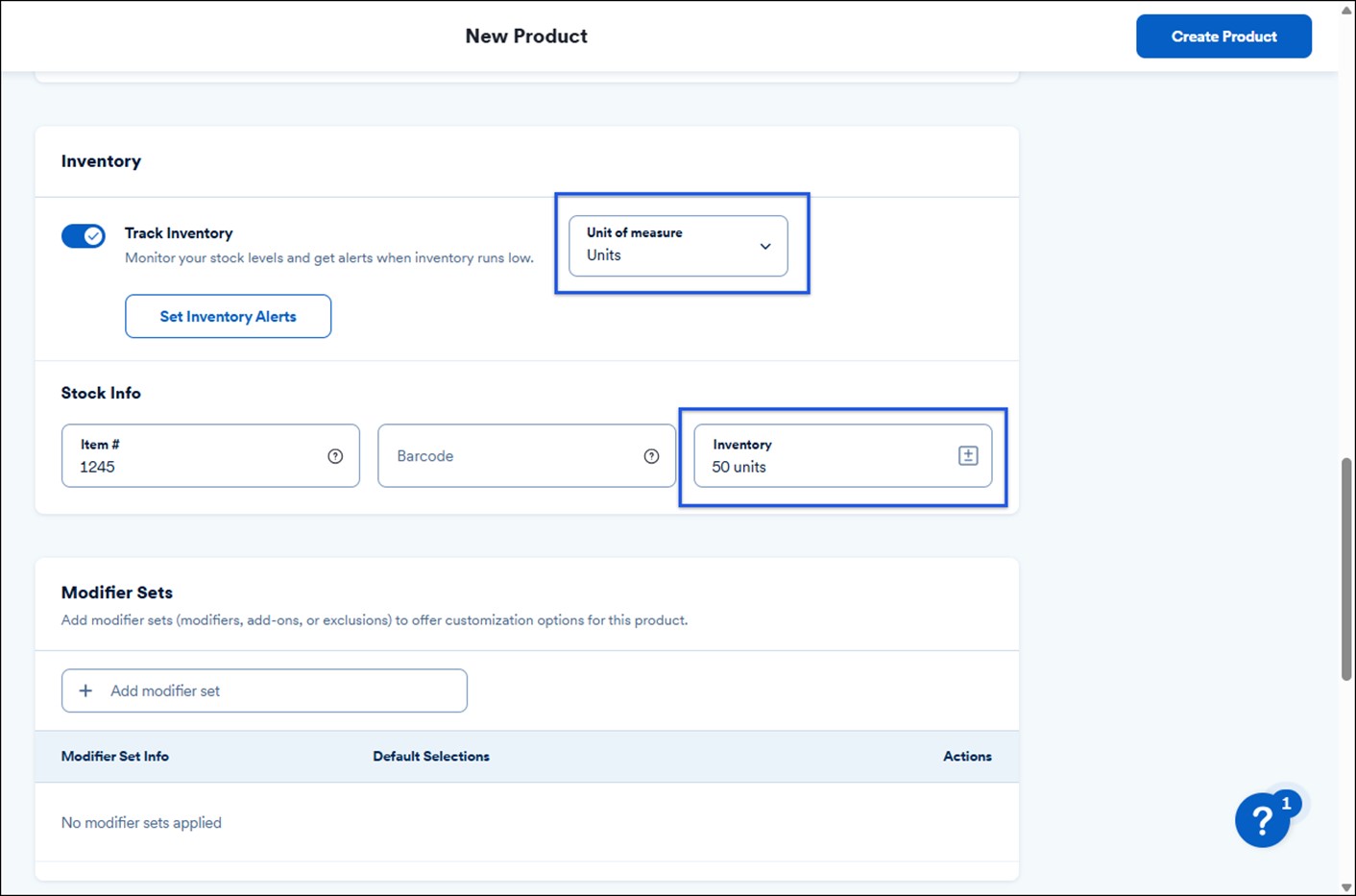
- Scroll down to the Inventory section and toggle Track Inventory ON.
- Set the Unit of measure to Unit.
- Provide an Item #.
- In the inventory, enter the total number of units (bottles of wine) in stock.
- Select Set Inventory Alerts to set a quantity that triggers a low stock email notification. For more detail information on setting these alerts see How to Set Up Inventory Alerts.
- Select Create Product.
- Select the dropdown arrow next to New Product > New Bundle/Assembly.

- Select Use existing inventory (Bundle).
- Fill in the Product Name. Make sure to include the word ‘glass’ to distinguish from the bottle.
- Scroll down to the Products in Bundle section. Locate the product using the search bar or selecting from the list.

- In the Quantity in Bundle field, enter the amount of product each glass will contain. For our bottle of wine example, 1 bottle = 1 unit. I serve 5 glasses per bottle. 1 divided by 5 is .2. So, one glass of wine is going to be .2 for the quantity in the bundle.
| Note: If at first you get an error after typing the partial number in the field, retype the number and it should accept your fractional value. |

- Scroll down to the Bundle Price section and set an amount you’d like to charge for each glass in the Bundle Price field.

- Select Create Bundle.
Every time a glass is sold using this new bundle, it will deduct the amount from the bottle quantity. If you set up inventory alerts, an email is sent when your minimum threshold is reached alerting you to order additional stock.