In this article
Enable appointment booking
Appointment booking can only be enabled from talech.com. For a full breakdown of the appointment scheduling settings, see article Appointment Scheduling Settings from talech.com.
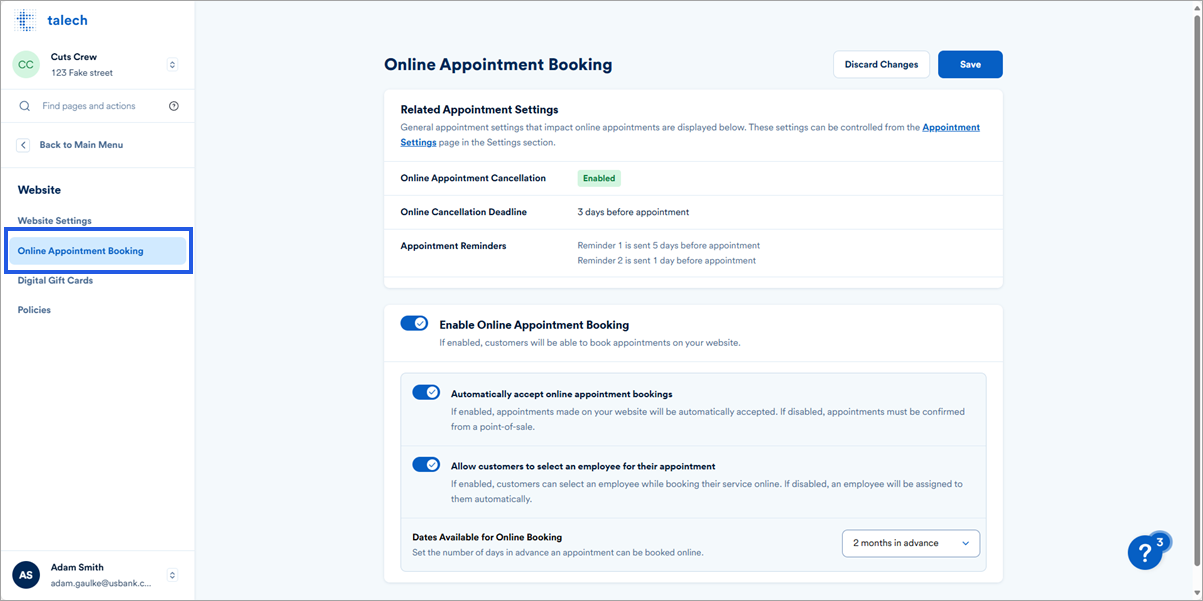
- Navigate to Website > Online Appointment Booking.
- Toggle on Enable Online Appointment Booking.
- Click Save in the top right.
Create services
Appointments can only be scheduled for services with a fixed time service type. Regular products, bundles, assemblies, and per hour services will not be included on your website.
Services can be created via talech Register or on talech.com.
talech Register
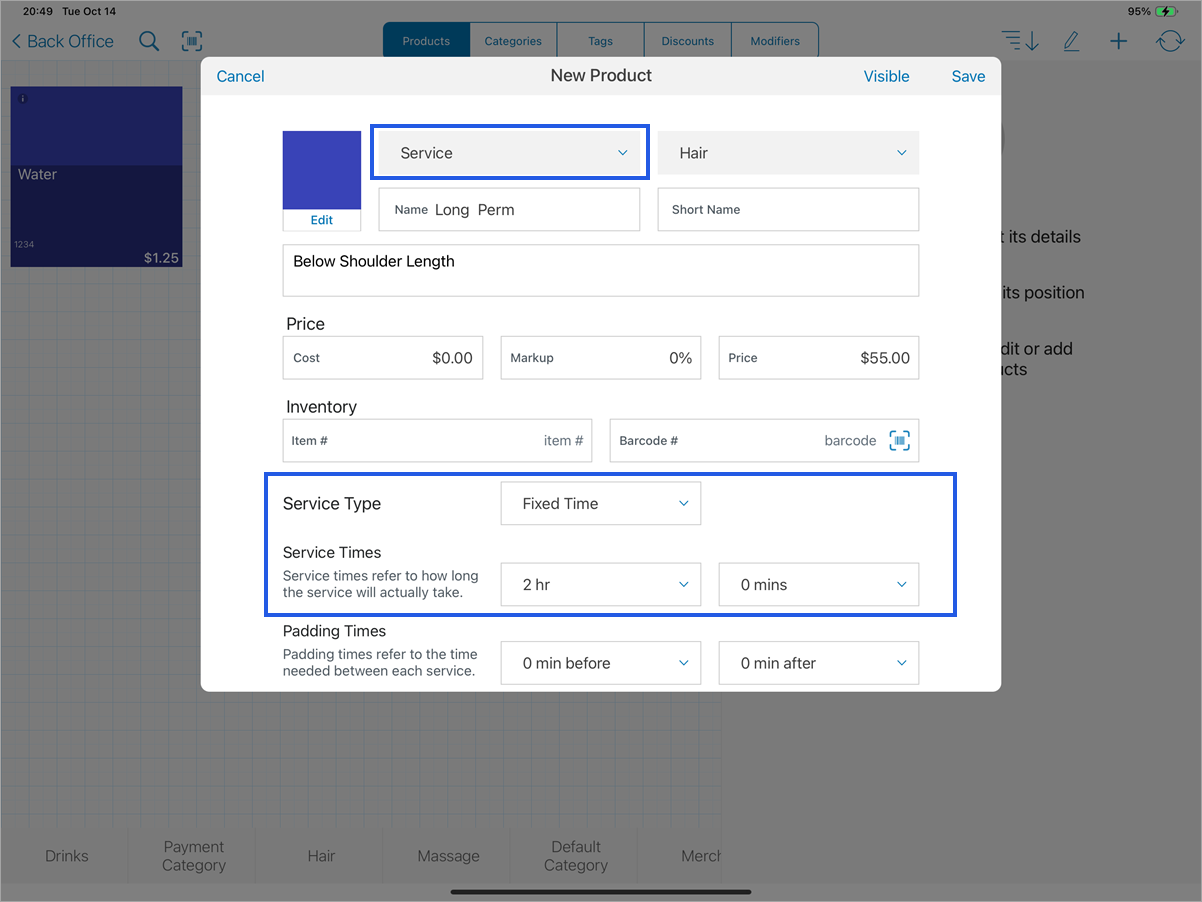
- Navigate to Back Office > Menu.
- Tap on + > New Product.
- Complete all the required fields and make sure:
- Product Type = Service.
- Service Type = Fixed Time.
- Service Times has a value set (padding time is optional).
talech.com
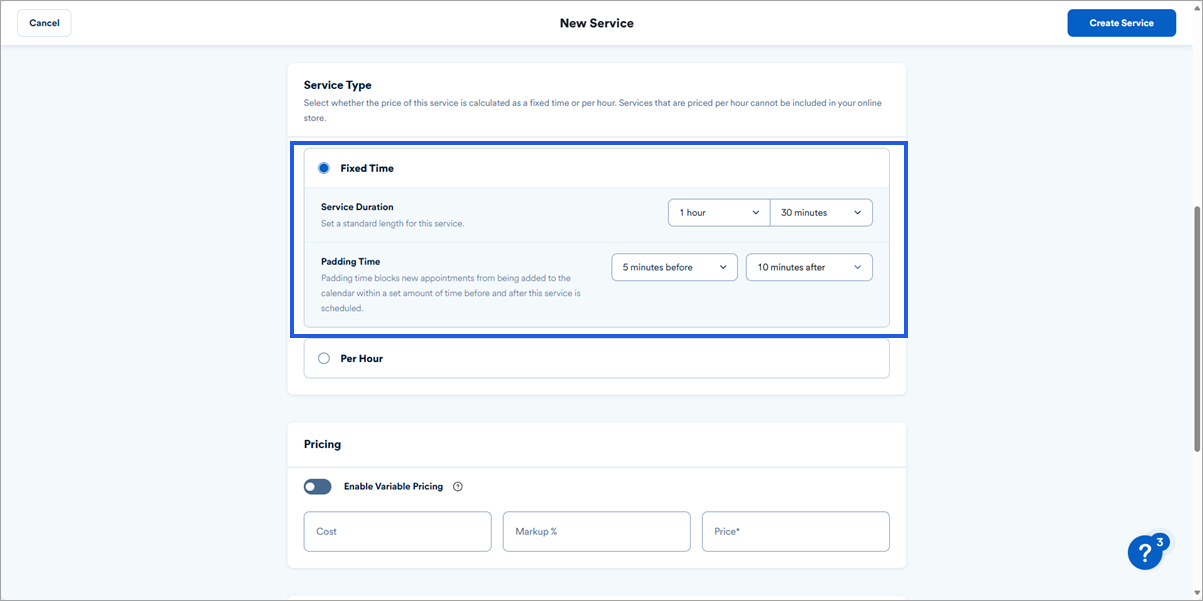
- Navigate to Items > Services.
- Select New Service.
- Complete all the required fields and make sure:
- Service Type = Fixed Time.
- Service Duration has a value set.
Assign services to a specific employee on talech Register
- Login to talech Register.
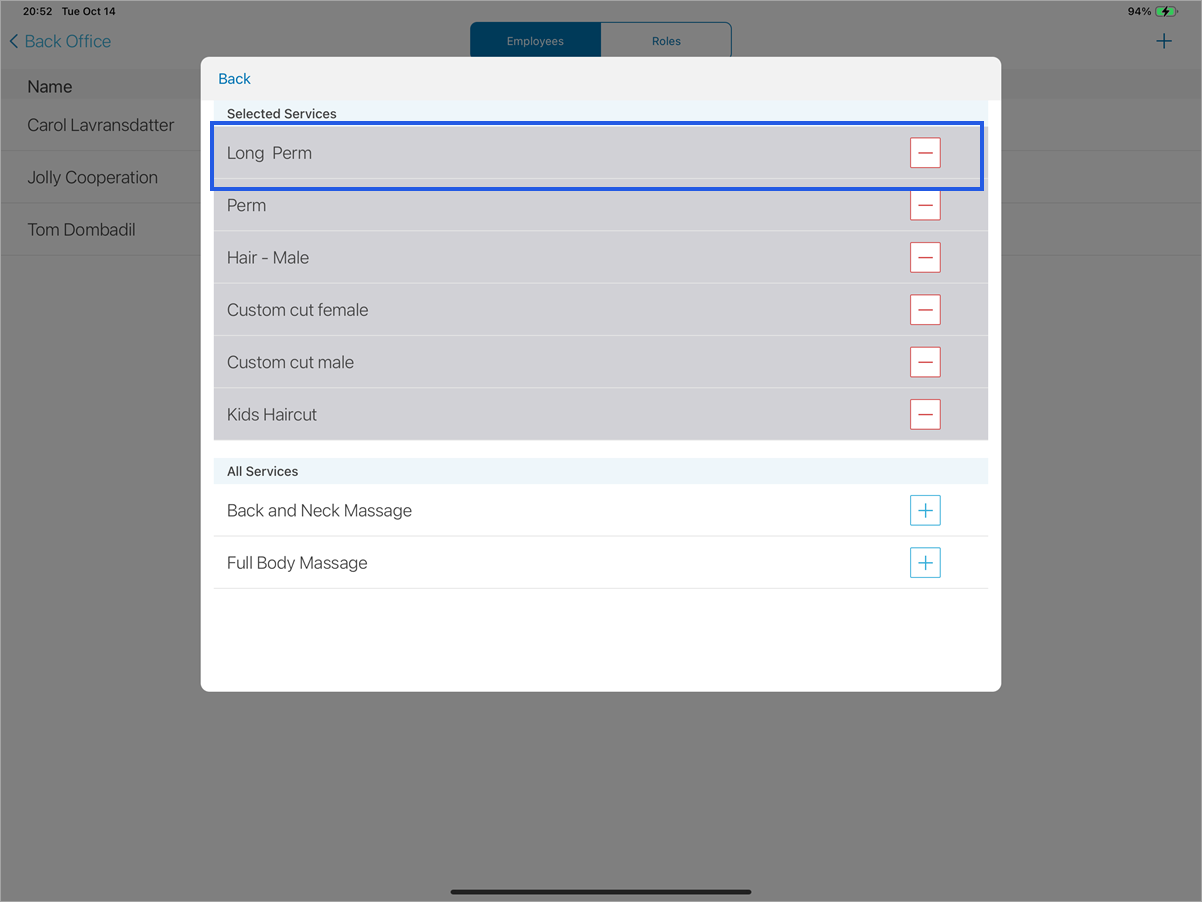
- From the Dashboard, navigate to Back Office > Employees.
- Select an employee from the list.
- Select Roles at the bottom of the screen.
- Select Edit next to their assigned role.
- Select Services.
- Press the + button next to the service name you wish to add.
- Select Back (may require multiple times) and select Save.
Assign services to a specific employee on talech.com
- Navigate to Employees > Employees.
- Select an employee to edit their profile.
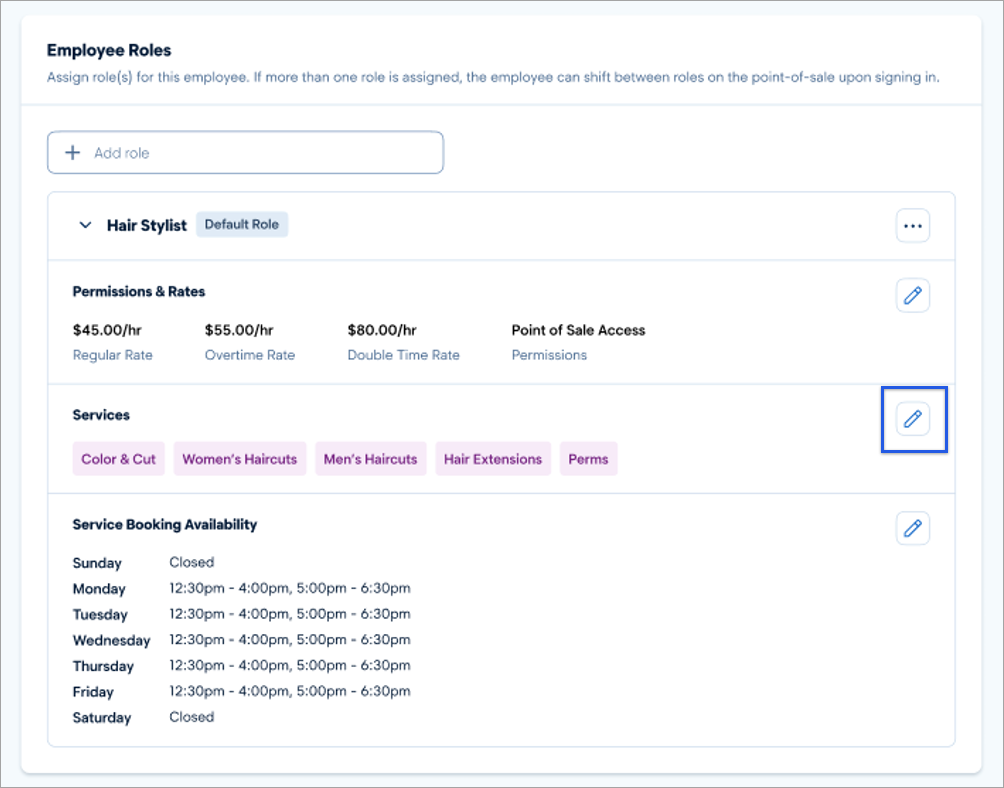
- In the Employee Roles section, click the role to expand the details.
- All the current services assigned to this employee are displayed in the Services section. To edit the services or add new, click the pencil icon.
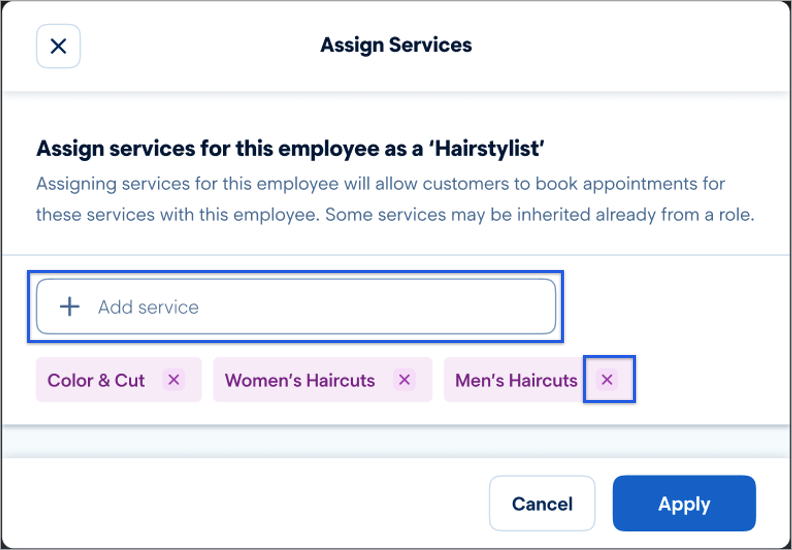
- In the Assign Services menu that appears, you can add or remove services.
- Add a service by clicking in the Add service field to view your existing services.
- Remove a service by clicking the x next to an assigned service.
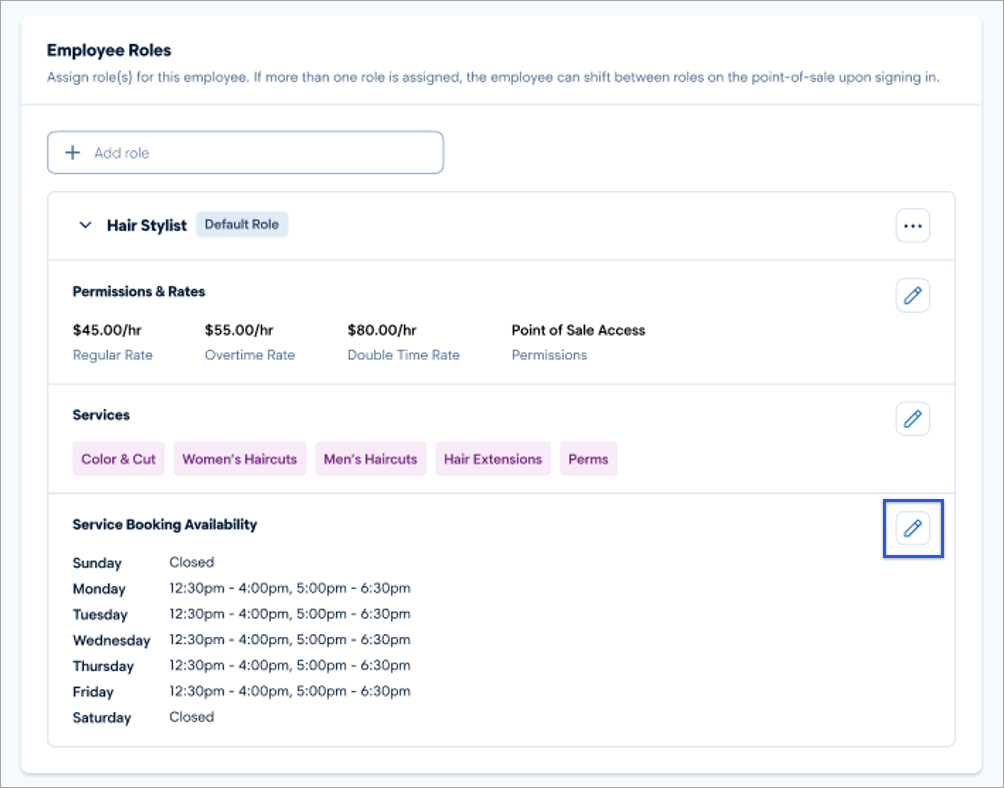
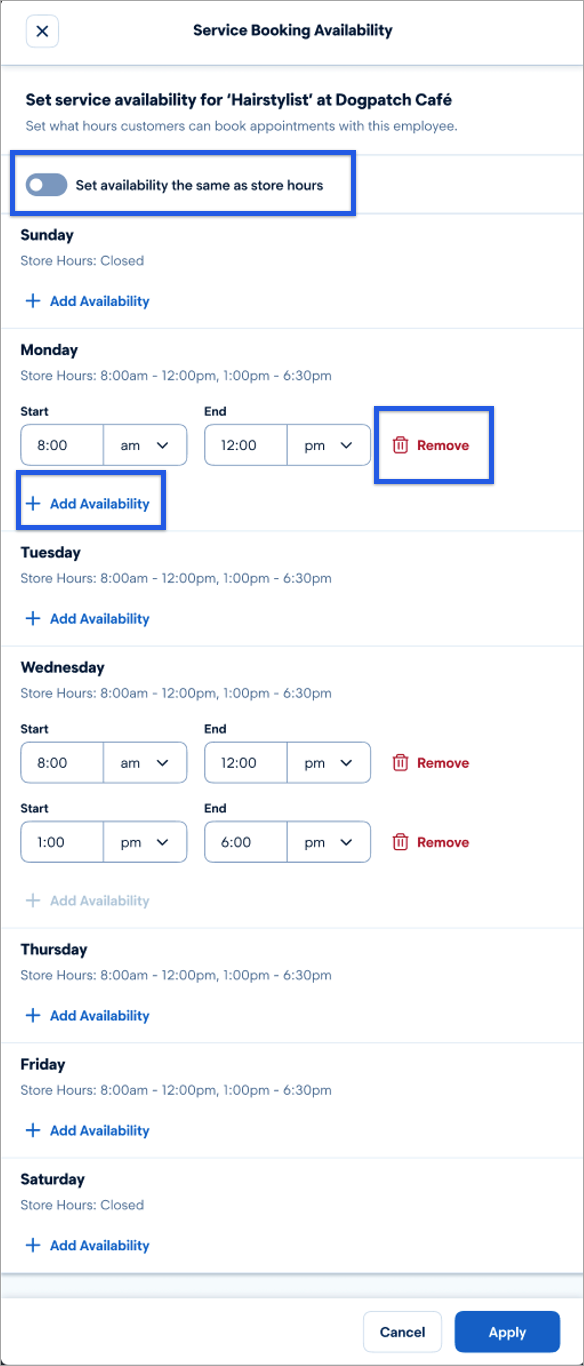
- In the Service Booking Availability section, click the pencil icon to edit the hours the employee is available for service booking.
- You can either set the availability to match your store hours or you can set custom availability hours.
- To set the availability to match your store hours, toggle Set availability the same as store hours to ON.
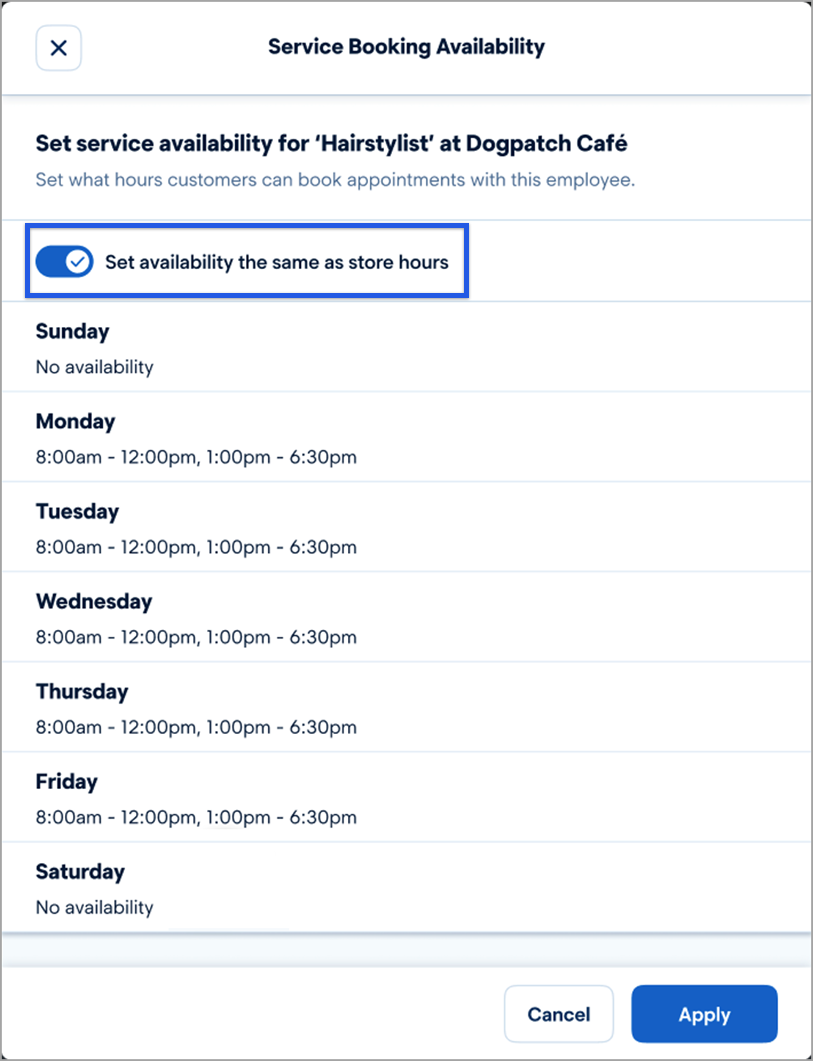
- To set customer hours for availability, toggle Set availability the same as store hours to OFF.
- Click Add Availability to enter additional hours for service booking.
- Click Remove to delete hours from the available service booking.
- Once done, click Apply.
Verify business information
Make sure your business information on talech.com is accurate, including your address, phone number, and business hours.
- Navigate to Settings > Business Information.
- Review the Store Details, Store Hours, and Contact Info sections. If changes are required, select Edit and update accordingly.
- Once done, select Save at the top right.
Preview your website
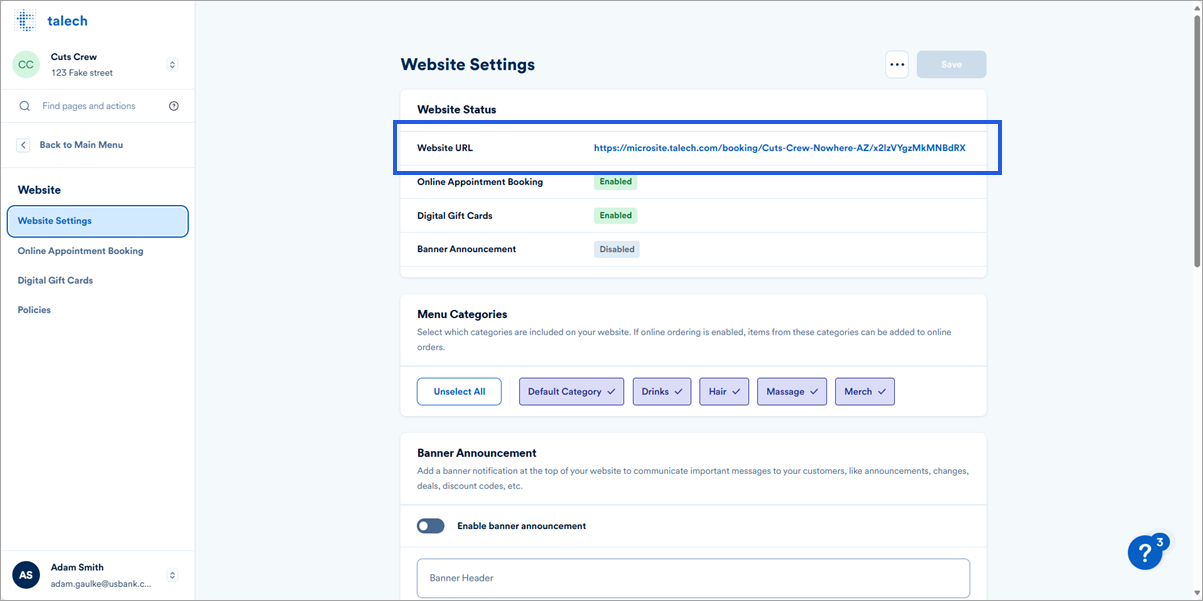
Once you’ve updated your settings, preview your website to see what your customer sees when scheduling an appointment online.
- Navigate to Website > Website Settings.
- Click the link in the Website URL to open your customer-facing site.
Differences between iPad and Android Devices
The Calendar/Appointments view is only currently available only on iPad devices. Android devices are not able to Complete, Cancel, or Schedule appointments. However, in Android, you will still be able to:
- Create Service Products
- Sell Service Products in the Register
- View Appointment Related Reports
- Assign Service Products to Employees
|
|
Still have questions? Or want to learn more?
Schedule a call with our talech Onboarding Post Go Live Services group. Let us help you make the most of this feature to benefit your business!
Click here to schedule a call: https://go.oncehub.com/talechpostlivehelp.
|